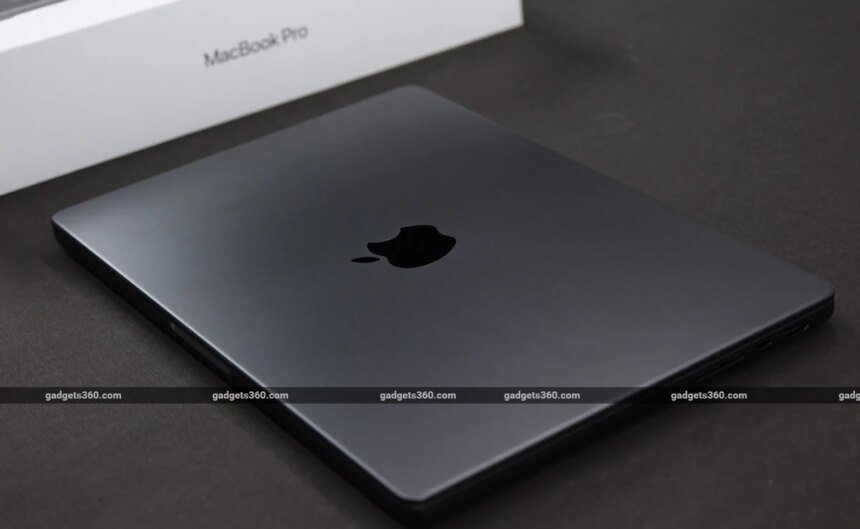
Apple regularly updates its MacBook lineup with more capable chipsets, longer software support and advanced features to offer better performance and efficiency. Many users upgrade their laptops or other personal gadgets in some situations, including when Apple stops providing software and security updates, or battery life drops significantly, or when performance slows down. You might also need to upgrade your device when you need faster USB ports, or an easier way to charge your laptop, such as MagSafe 3.
If you plan to sell, exchange, give away, or recycle your MacBook, there are several important things to consider. From backing up your data to erasing your MacBook, here’s everything that you need to know about preparing your MacBook for sale or trade-in.
Cancel AppleCare Plan Coverage
Before selling or exchanging your old MacBook, you have to check the status of your AppleCare Plan. If your MacBook has an AppleCare plan, you can either cancel it or transfer the coverage to a new owner. For plans billed as recurring payments through Apple, you can cancel them by:
- Heading to Settings on your Apple device to find your recurring AppleCare plan
- Cancel your plan online in your Subscriptions.
If your MacBook is not turning on, you need to fix that before proceeding further. Apple provides a detailed support guide outlining common causes and possible fixes to help troubleshoot the issue.
What to Do Before You Erase and Reset Your MacBook
Before you proceed with erasing all your data, make sure to sign out of Apple services. You can head to iTunes and deauthorise your computer. MacBook models with macOS Catalina or later can skip this step. Additionally, you have to sign out of iCloud through System Settings or System Preferences. Also, you need to sign out of iMessage by heading to the Messages app> Settings >Sign Out.
How to Back Up Your MacBook
Even if you are selling or exchanging your old MacBook, it’s important to clear all your personal data and files from the system. It is recommended to create a backup beforehand that will help users restore them to a new MacBook or transfer them to another device.
Use Time Machine: MacBooks have a built-in backup tool called Time Machine to automatically save apps and photos to emails and documents onto a USB drive or other storage device.
iCloud: iCloud is another option to keep data synced across all devices signed in with the same Apple account. This can be used to save photos, videos, contacts, calendars, notes, and passwords.
Storage devices: You can manually back up files such as photos, videos and documents by dragging them from your MacBook to a USB drive or other external storage device connected to your Mac.
Third-party backup tools: You can rely on third-party backup tools available on the App Store and other platforms. Different tools follow different methods, and some lets store backups on external devices or cloud-based services.
People who are upgrading to a new MacBook can use the Migration Assistant for transferring documents, apps, user accounts, and settings from their MacBook without deleting its data or altering the macOS on the new one.
How to Erase and Reset Your MacBook to Factory Settings
Once you finish backing up your MacBook, you can follow these steps to erase all settings, data and apps.
- Open your MacBook and choose System Preferences from the Apple Menu, and select Erase All Content and Settings.
- An Erase Assistant will appear, prompting you to sign in with administrator credentials.
- Enter the password that you use to log in to your Mac.
- It may offer the option to back up your MacBook with Time Machine before resetting it.
- A summary of all the settings, media, data and other items that will be turned off or erased will be shown.
- Click Continue to confirm the reset and click the Erase All Content & Settings button.
- Your MacBook will restart, erase all data, and return to a setup screen like a new device.
If you are selling the device, you can stop at this stage without setting it up again.