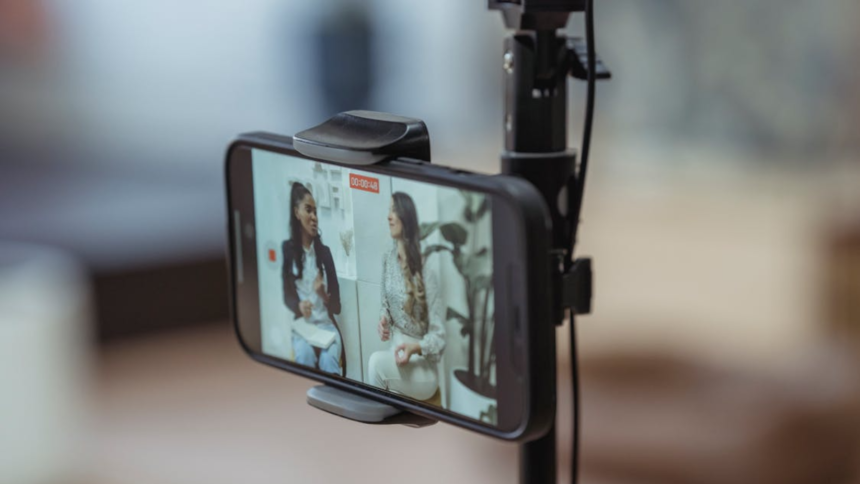
Windows was recently updated with a new functionality that lets you connect your Android smartphone as a webcam with your PC running Windows 11. The new feature eliminates the need for you to download third-party apps to do the same, which are known to put your privacy and security. Moreover, you may not have to buy a separate webcam if you currently do not own one, as you can simply connect your handset to your PC and use it as a webcam. Phones are generally known to have better cameras than integrated webcams. Hence, using your handset as a camera for your PC would be a better choice in certain situations.
If you are wondering how you can use your Android smartphone as a webcam on Windows 11, we have prepared a simple step-by-step guide to help you do the same.
Benefits of Using Your Android Phone as a Webcam on Windows 11
There are multiple benefits of using your Android phone as a webcam on Windows 11. For starters, your Android phone has a better rear camera setup, which is capable of recording videos and capturing images at a higher resolution. Considering most of the laptops feature an IR webcam with a Full-HD resolution at best, your Android handset can better serve your needs when you need better image quality.
On top of this, if you own a PC, you typically have to spend extra on an external webcam. While there are a few monitors that come with IR webcams, they suffer from the same image quality issue as the ones on your laptop. Hence, using your Android smartphone as a webcam would be a better choice, as you will no longer have to purchase a separate webcam to go with your PC.
Additionally, webcams on laptops are fixed in one place. At best, you can move your laptop’s screen back and forth to adjust the frame. However, you will not have to face this issue with your wirelessly connected Android phone, as you can place your phone anywhere you want to and easily adjust the frame accordingly.
Since your Android phone connects to your Windows 11 PC via Bluetooth (for pairing) and Wi-Fi (for the connection), you do not have to use a cable to connect to your computer, which often becomes a hassle to deal with when working with multiple PC peripherals. Lastly, if you do live streams on YouTube, you can use your Android phone as a secondary webcam that can be placed at a different angle from your primary webcam.
Requirements to Use Your Android Phone as a Webcam on Windows 11
According to Microsoft, there are three major requirements if you want to use your Android phone as a webcam on Windows 11.
- Your PC should be running at least Windows 11 or a later version.
- Your Android smartphone should be running Android 10 or a newer version of the OS.
- Moreover, if you are using the Link to Windows app to connect to your PC, you must make sure that you are using the Link to Windows app’s version 1.24022.0 or later.
If your devices meet the above-mentioned requirements, you can get started with the steps.
How to Use Your Android Phone as a Webcam on Your Windows 11
- First, you must download the Link to Windows app on your Android phone.
- Then, open the Link to Phone app on your PC.
- Now, sign in to the app on your PC.
- Once signed in, the app will show you a QR code.
- You must now scan the QR code from the Link to Windows app on your Android phone to establish a wireless connection between the two devices.
- Alternatively, you can connect your Android handset directly to your Windows PC via Bluetooth.
- Once the two devices have been connected, open the Settings app on your PC.
- Navigate to the Bluetooth and devices section and look for your Android phone’s name.
- Now, tap on the name of your Android handset. A new screen will appear.
- Here, you must toggle the Use device as a camera button if it is not already turned on.
- Now, open the Manage cameras menu in the Settings app on your PC.
- Under the list of connected cameras, your Android phone’s device name will appear.
- Tap on the device name of your Android handset.
- Then, a pop-up window will appear with the camera feed from your phone.
- If the camera feed is blank, tap on the Resend Permission Request button and grant the required permission from your Android phone.
- Now you can use your Android smartphone as a webcam on Windows 11.
FAQs
How can I select my Android phone as a webcam on my Windows 11 PC?
You will first have to connect your Android phone to your Windows PC via Bluetooth, and then you can use your Android handset as a webcam on Windows 11.
What permission do I have to give to use my Android phone as a webcam on Windows 11?
You will have to permit your Windows PC to access your connected Android phone’s camera.
Do I need to download an app to use my Android phone as a webcam on Windows 11?
You can download the Link to Windows app to connect your handset to your PC.